
Career Guides
How to cancel LinkedIn Premium on desktop, iPhone and Android, and get a refund
To cancel LinkedIn Premium on a computer, click Me, then Premium features, then Manage subscription, then Purchases, pick your active subscription and click Cancel subscription, then Confirm cancel. If you paid inside the iPhone app, cancel through your Apple Account subscriptions, and if you paid through Google Play, cancel on LinkedIn or in Google Play. Do it at least one day before your billing date. Below: each path step by step, free trials, refunds, what you lose and when, and the differences for Sales Navigator and Recruiter Lite.
How do I cancel LinkedIn Premium?
Cancel where you paid. Billed by LinkedIn: on a computer, go to Me, Premium features, Manage subscription, Purchases, your active subscription, Cancel subscription, Confirm cancel. Billed by Apple: in the LinkedIn app on an Apple device, or in Settings, your name, Subscriptions. Billed by Google Play: on LinkedIn’s desktop site, in the LinkedIn app or in Google Play. Cancel at least one day before the billing date. A paid plan then runs to the end of the cycle; a cancelled free trial stops at once. Your profile, connections and data stay. Unused InMail credits and the Premium badge go.
Published 26 November 2026 by Lumyhired, an AI job-hunt assistant that competes with Premium for job seekers’ money. Every LinkedIn, Apple and Google rule below was read on their own help pages that day. Whether Premium is worth paying for in the first place is covered in our LinkedIn Premium cost and worth-it guide.
First, find out who bills you
LinkedIn Premium can be billed by three different companies, and only the one that bills you can stop the payments. LinkedIn’s cancellation page sorts members by “how you purchased Premium”: directly from LinkedIn (on a computer or a mobile browser), through the Apple App Store, or through the Google Play Store. Most failed cancellations come from using the wrong path, for example opening the iPhone app to stop a subscription that LinkedIn bills on your card.
Three quick checks tell you which case you are in:
- Your card or bank statement. A line from LinkedIn means LinkedIn bills you. A line from Apple or Google means the app store does.
- Your email. Apple suggests searching your inbox for “receipt from Apple” or “invoice from Apple”. LinkedIn sends no email receipts at all, per its receipts help page; its receipts sit in LinkedIn Admin Center under Transactions.
- Where you clicked “Try Premium”. If you confirmed the purchase with your Apple Account inside the iPhone or iPad app, Apple bills you. On an iPhone browser, LinkedIn bills you. If the Android app showed a Google Play payment sheet, Google bills you.
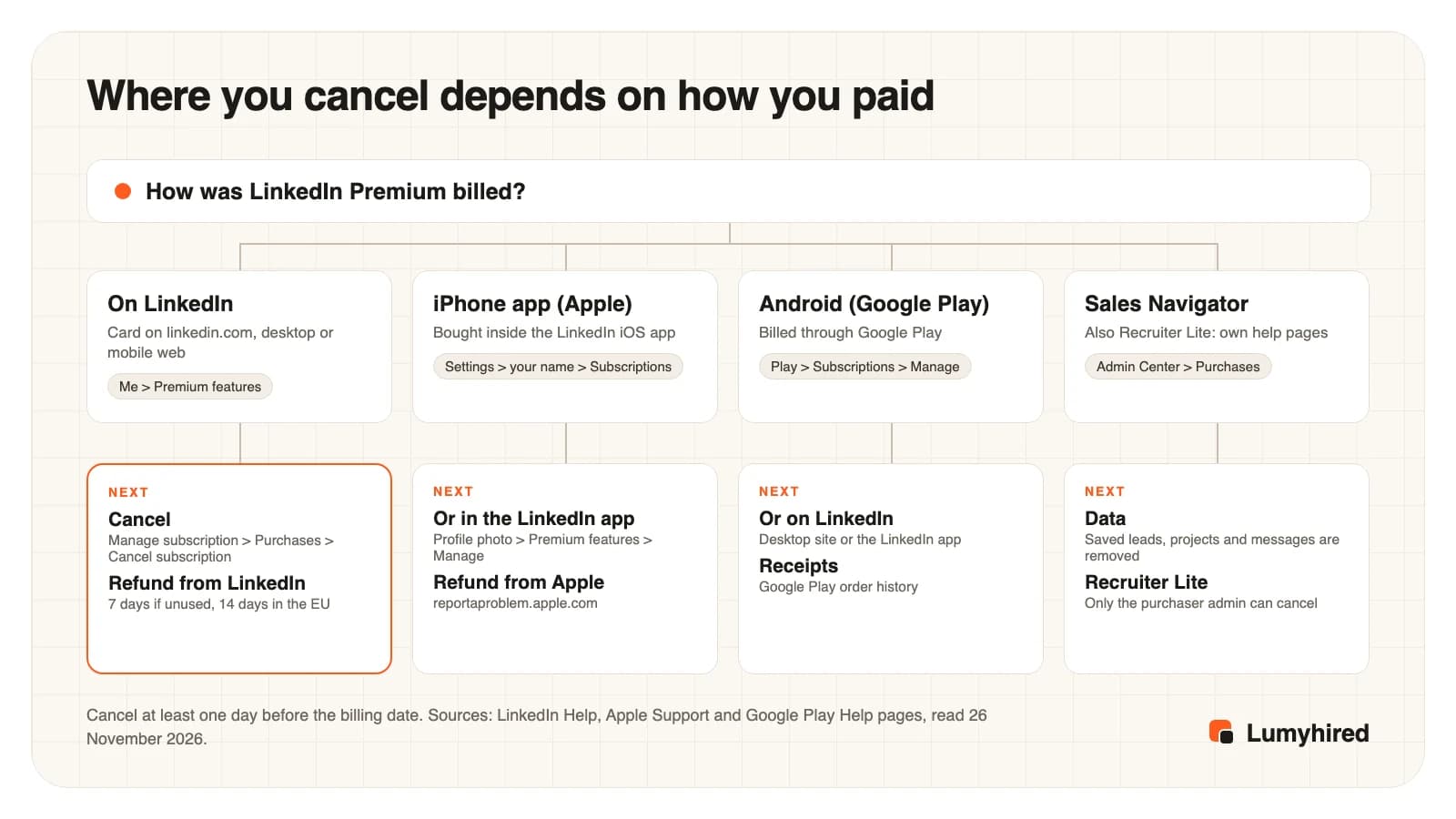
The deadline is the same in every case. LinkedIn’s cancellation page says to cancel “at least one day before your billing date” to avoid being charged for the next cycle. The billing date is shown on the Manage Premium account page.
How to cancel LinkedIn Premium on a computer
This is the path for anyone LinkedIn bills directly, which covers a purchase made on linkedin.com from a computer, an Android phone browser or an iPhone browser. LinkedIn’s help page gives these steps, read on 26 November 2026:
- Click the Me icon at the top of your LinkedIn homepage.
- Select Premium features from the dropdown.
- Click Manage subscription on the left, under Plan Details. LinkedIn redirects you to LinkedIn Admin Center.
- Click Purchases on the left.
- Select your Active subscription.
- Click Cancel subscription under Actions.
- Click Confirm cancel.
The help page also has a Cancel Premium button that takes a signed-in member straight to the cancellation page, which skips the first steps. Whichever way you get there, the last click is Confirm cancel; until you make it, the subscription keeps running.
On an Android phone
If LinkedIn bills you, the Android app can cancel too. The cancellation FAQ says a direct LinkedIn subscription can be cancelled on the desktop site or “through the LinkedIn mobile app on an Android device”. In the app: tap your profile photo, tap Premium features, tap Manage your subscription, tap Cancel subscription and follow the prompts.
Paid on an iPhone browser? Use a computer
This is the case that trips people up. If you bought Premium on an iPhone through Safari or another browser, LinkedIn processed the payment, and its help page states that the cancellation “must be done on desktop and not on the iOS app.” Sign in to linkedin.com from a computer and follow the seven steps above.
Make sure it worked
Go back to Purchases in Admin Center and open the subscription. It should show an end date and no next billing date. LinkedIn’s receipts page says it does not email receipts, so do not wait for a confirmation email to know the status; check the page itself, and take a screenshot in case you later need to dispute a charge.
How to cancel LinkedIn Premium on an iPhone or iPad (Apple billing)
When you subscribed inside the LinkedIn app for iOS, Apple took the payment and Apple holds the subscription. LinkedIn’s App Store help page says such a subscription “can be cancelled using the LinkedIn mobile app on an Apple device”, and that LinkedIn “can’t provide any billing support for Apple App Store purchases”. You have two routes that end in the same place.
From the LinkedIn app
- Tap your profile photo.
- Tap Premium features.
- Tap Manage your subscription. You land on the Manage Premium account settings page.
- Tap Cancel subscription and follow the prompts, which hand you over to Apple.
From your Apple Account settings
Apple’s own instructions, read the same day, work without opening LinkedIn at all:
- Open Settings and tap your name.
- Tap Subscriptions.
- Tap the LinkedIn subscription.
- Tap Cancel Subscription. You may need to scroll down to see it.
On a Mac, the same list is in the App Store: click your name at the bottom of the sidebar, then Subscriptions. From any browser, Apple links its subscriptions page on account.apple.com. Apple adds a useful check: “If there is no Cancel button or you see an expiration message in red text, the subscription is already canceled.”
If LinkedIn does not appear in the list, the subscription was paid from another Apple Account (look at which account is named on the Apple receipt) or LinkedIn bills you directly, in which case use the computer path. A family member’s subscription can only be cancelled by that person, per Apple.
One more thing Apple-billed members should know: the App Store page on LinkedIn says the subscription ends at the end of the current billing cycle and “you need to wait for this cycle to finish” before buying a new Premium subscription, for example on the desktop site.
How to cancel LinkedIn Premium on Android (Google Play billing)
A subscription bought in the Android app through Google Play has the widest choice. LinkedIn’s Google Play help page says it can be cancelled on the LinkedIn desktop site, in the LinkedIn mobile app, on Google Play on a computer or in the Google Play app.
- On LinkedIn’s desktop site: Me, Premium features, then Subscription details under Resources (the name differs from the card-billed path), then Admin Center, Purchases, your active subscription, Cancel subscription, Confirm cancel.
- In the LinkedIn app: profile photo, Premium features, Manage your subscription, Cancel subscription.
- On Google Play: open your subscriptions in Google Play, click Manage next to LinkedIn, click Cancel subscription, pick a reason in the pop-up and click Continue. These are Google’s steps for play.google.com on a computer.
Google Play warns that “When you uninstall an app, your subscription won’t cancel.” Deleting LinkedIn from your phone changes nothing on the bill. Google also states the rule that matters after you cancel: “you’ll still be able to use your subscription for the time you’ve already paid.”
LinkedIn cannot show you the purchase history of a Google Play subscription. Your receipts are in your Google Play order history.
How to cancel a LinkedIn Premium free trial without being charged
Cancel the trial at least one day before it converts, in the same place you would cancel a paid plan. A trial is a paid subscription with a delay: LinkedIn’s free trial page says “You must enter a valid credit card to start the trial” and that the subscription “will automatically convert to a paid plan unless you cancel before the trial ends.”
The rules worth knowing before you start one, all from LinkedIn Help pages read on 26 November 2026:
- The length is not fixed. “Trial length may vary based on region or promotional terms.” The auto-renewal page, on the other hand, says the card used for a free trial “will automatically be charged one month from the date you signed up”. Read the end date shown on your own subscription and trust that over any general rule, this one included.
- The date has a time zone. Billing, cancellation and renewal dates follow the time the subscription was activated, in local US time for US-based members using LinkedIn in English and in UTC for everyone else, per the trial eligibility page. A member in Paris or Sydney who waits for the last evening can be charged earlier than expected.
- Reminders depend on where you subscribed. A trial started on the desktop site gets an email reminder before it ends. One started on a mobile device gets none from LinkedIn, though “Apple and Google may provide their own renewal notices.”
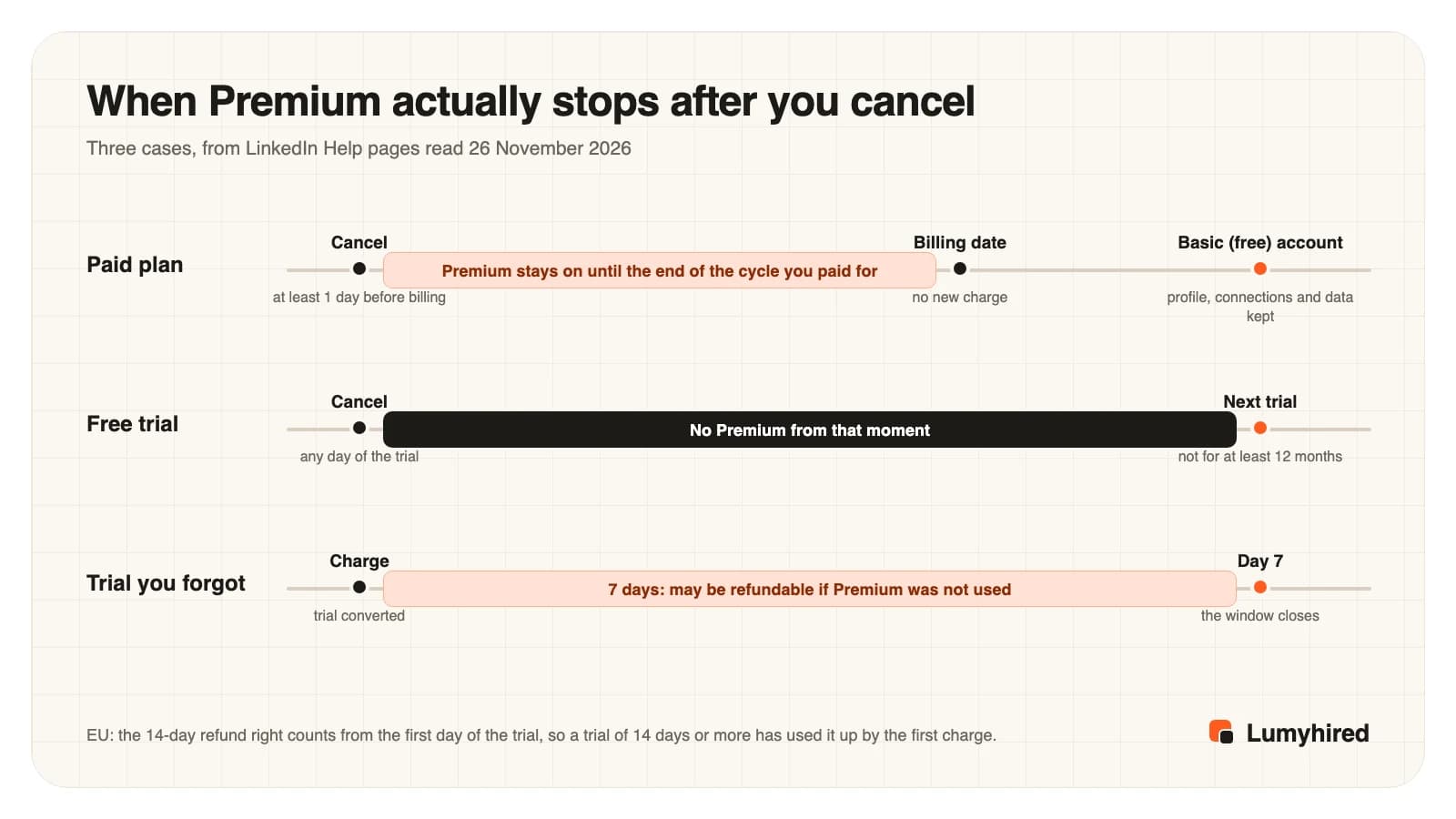
- Cancelling ends it on the spot. Unlike a paid plan, a cancelled trial does not run to its end date: “If you choose to end your free trial early, you will immediately lose access to Premium features.”
- One trial per 12 months. If you cancel a trial, you are not eligible for another one for at least 12 months.
- No free switching. Changing plan during a trial ends the free part: billing starts that day at the new plan’s price.
- Apple’s own margin. For trials billed by Apple, Apple says to cancel “at least 24 hours before the trial ends.”
A safe routine for the trial
- On day one, open Admin Center and note the auto-renewal date it shows.
- Set a reminder two days before that date, in your own time zone.
- Use the trial for what you started it for: the InMail messages, the applicant insights, the courses.
- Cancel once you are done, since cancelling cuts access the same moment. Check that Purchases shows the trial as cancelled.
If the charge has already gone through, the refund section below applies. LinkedIn’s cancellation page points members who “missed cancelling” a trial straight to its refund policy.
What happens after you cancel LinkedIn Premium
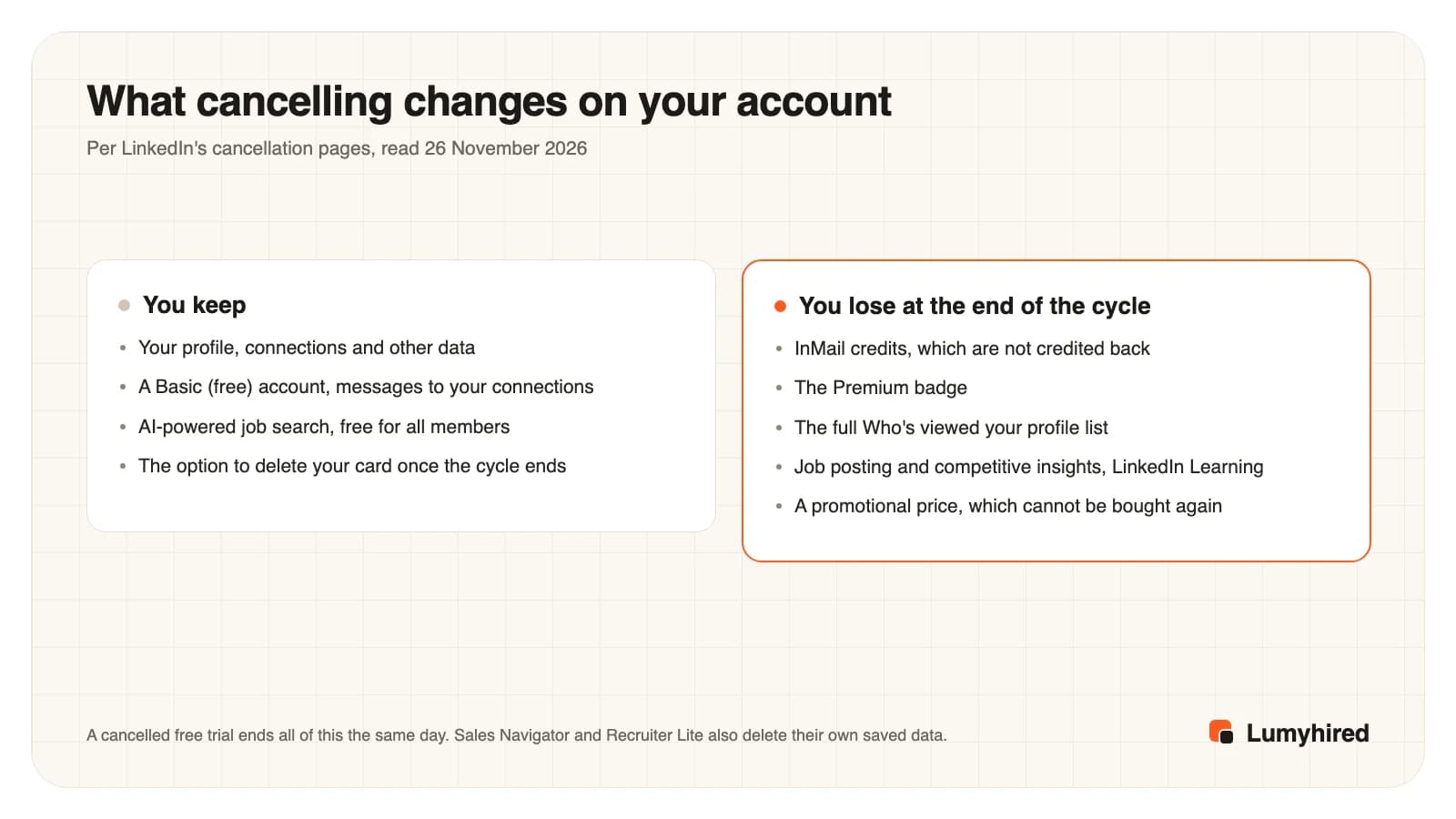
Nothing changes until the end of the billing cycle, then your account becomes a Basic (free) account and keeps “your profile, connections, and other data”, in the words of the cancellation FAQ. What goes is the Premium layer on top.
What you lose at the end of the cycle
LinkedIn’s two cancellation pages list, between them:
- InMail credits. All the credits you have built up, which “can’t be credited back”. If you have some left, send them before the end date.
- The Premium badge on your profile.
- Who viewed your profile: the full list and the specific viewer details.
- Job and company insights: the extra data on job postings, Premium insights on LinkedIn Pages and competitive insights.
- LinkedIn Learning access.
- Advanced search filters and unlimited people browsing; LinkedIn warns you “may encounter the commercial use limit” on a free account.
- A promotional price. If you were paying a discounted rate or a plan LinkedIn no longer sells, you cannot buy it again after cancelling.
What you keep
Your profile, connections and other data. Messaging is the part people ask about most: a Basic account can message the members you are connected to, per LinkedIn’s InMail help page, and can no longer start a conversation with someone outside your network. LinkedIn’s AI-powered job search stays, since its help page says it “is available to all LinkedIn members worldwide”, with filters such as Easy Apply, In my network and Under 10 applicants.
Your card on file
You cannot delete your payment method while a paid subscription is active. Once the billing cycle has ended, you can. If you want the card gone, set a reminder for the day after your end date.
Ending Premium today
The self-service button always schedules the end for the next billing date. LinkedIn’s subscription FAQ says members can “contact LinkedIn customer support for immediate cancellation.” That only makes sense if you also ask for a refund; otherwise you give up days you paid for.
Can you get a refund on LinkedIn Premium?
Sometimes, and quickly is the condition. LinkedIn’s refund policy, marked “Last updated: 1 month ago” on 26 November 2026, says Premium subscriptions (it names Premium Career, Premium Business, Premium All-in-One, Premium Company Page, LinkedIn Learning, Recruiter Lite and Sales Navigator) “may be refundable within 7 days from the date the subscription is charged without Premium usage. A previous refund may affect your eligibility.” “May” means LinkedIn decides case by case.
| Situation | Rule as written | Who to ask |
|---|---|---|
| Anywhere, billed by LinkedIn | May be refundable within 7 days of the charge if Premium was not used | LinkedIn, Request a Refund link |
| EU citizen | Full refund during the 14 days after the subscription begins; with a free trial, day one of the trial is day one of the 14 | |
| Brazil | Full refund if claimed within 7 days of the charge | |
| Denmark, Netherlands | Cancellation with one month’s notice and a refund of the remaining period | |
| Germany | Same, excluding the first year of an annual subscription | |
| India, with withholding tax | Request within 180 days of the subscription start | |
| Paid by SEPA direct debit | Refund from your bank, claimed within eight weeks of the debit | Your bank |
| Bought in the iPhone app | “All iOS refunds must be issued by Apple” | Apple, reportaproblem.apple.com |
| Bought through Google Play | Not covered on LinkedIn’s refund page; Google’s refund policies apply | LinkedIn first, then Google Play |
How to ask LinkedIn for the money back
- Cancel first, using the path for your billing method, so a second charge cannot follow.
- Stop using Premium. The policy hinges on “without Premium usage” and does not define usage, so send no InMail and open no Premium feature after the charge.
- Open the refund policy page and click Request a Refund, which LinkedIn offers to members who “believe you are eligible”.
- Do it within the 7 days, or within 14 days of the start if you are an EU citizen. Keep a screenshot of the cancelled subscription.
How to ask Apple
Apple’s refund page gives four steps: sign in to reportaproblem.apple.com, choose “I’d like to” then “Request a refund”, pick a reason, then pick the LinkedIn subscription and submit. Apple says to wait 24 to 48 hours for an update. A pending charge cannot be refunded yet; wait for the email receipt.
How to ask Google
Google’s refund policy page says that most apps are made by third-party developers who “can process refunds pursuant to its policies and applicable laws”, and that contacting the developer “is often the quickest way”. For LinkedIn that means its help center. Google has separate rules for the European Economic Area and the United Kingdom, and partial refunds for subscriptions in Israel, France and Germany only.
Cancel, downgrade or pause: what LinkedIn offers
Before you cancel, LinkedIn’s FAQ points to one alternative: a downgrade to a cheaper plan. It is narrower than it sounds. The downgrade help page, “Last updated: 11 months ago”, sets these limits:
- Desktop only. The option is not in the apps.
- Three plans qualify: Premium Business, Sales Navigator Core and Sales Navigator Advanced with a single active seat.
- Premium Career does not. “You cannot downgrade if you have a Premium Career subscription.” Job seekers, who are the main Premium Career audience, can only cancel.
- The cycle restarts. The switch happens at once and you pay the new plan’s price from that day.
- Promotions are lost. Changing billing frequency, upgrading or downgrading while a promotional offer applies forfeits the offer for good, per the cancellation FAQ.
The path, for the eligible plans: Me, Premium features, Subscription details, Admin Center, Purchases, your active subscription, Switch plans, then pick a lower plan and click Downgrade plan.
Is there a pause?
None of the LinkedIn Help pages we read on 26 November 2026 mentions a way to pause Premium. Google Play has a pause feature, and Google says “Some apps let you pause your subscription” for one week to three months, but LinkedIn’s Google Play page does not list it among the options. If you are billed through Google Play and a Pause payments button shows under Manage for LinkedIn, that is Google’s feature. Everyone else has two real choices: keep paying, or cancel and subscribe again later at whatever the price is then.
Switching to yearly to save money
LinkedIn sells monthly and yearly billing, and its subscription FAQ says a quarterly cycle is being rolled out gradually and may not be available to you. Yearly billing costs less per month, but a job search that ends in month three leaves nine months paid. Prices and that trade-off are in our guide to what LinkedIn Premium costs.
Premium Career, Business, Sales Navigator and Recruiter Lite: how cancelling differs
The plans share a billing system, LinkedIn Admin Center, but not the same consequences. The biggest difference is what happens to the work you saved inside the product.
| Plan | Where to cancel | Downgrade instead? | What happens to saved data |
|---|---|---|---|
| Premium Career | Me, Premium features, Manage subscription, Admin Center | No | Profile, connections and data kept; Premium features end with the cycle |
| Premium Business, All-in-One | Same path as Premium Career | Business: yes, desktop only | Same as Premium Career |
| Sales Navigator Core | Settings & Privacy, Account Preferences, Subscriptions & payments, Manage Premium account, Manage Subscription, Admin Center | Yes, desktop only | Messages, saved leads and saved accounts removed as soon as you cancel |
| Sales Navigator Advanced | Settings & Privacy, Manage Premium account, Admin Center, the subscription, Cancel subscription | Single seat only | Same as Core |
| Recruiter Lite | Product settings, Manage Account, then Admin Center or Cancel Subscription | Not listed | Projects and job postings permanently deleted; only the purchaser admin can cancel |
Sales Navigator: export before you cancel
Sales Navigator’s help page is blunt. There is currently no option to save messages, saved leads or saved accounts, and “This data is removed as soon as you cancel”. If you buy Sales Navigator again later, you start over with a new account. InMail credits do not move to your personal account, and messages sent from Sales Navigator cannot be read from it. Two more rules: a Sales Navigator bought through LinkedIn’s sales team is cancelled through your account manager, and one bought on an iPhone is cancelled on the iPhone. If prices have gone up since you subscribed, your old price is gone once you cancel.
Recruiter Lite: the cancellation is permanent
Only a purchaser admin can cancel Recruiter Lite. LinkedIn warns that cancelling will “Permanently delete all associated data (e.g., projects, job postings)”, that previously received InMail responses become inaccessible, and that InMail credits do not carry over. Your personal LinkedIn account is not affected. LinkedIn is moving Recruiter Lite billing to Admin Center gradually, so you will see one of two flows: Product settings, Manage Account, View LinkedIn Admin Center, Purchases, then Cancel subscription; or Product settings, Manage Account, Cancel Subscription.
Closing your LinkedIn account
Cancel first. LinkedIn’s Apple and Sales Navigator pages both say that if you want to close your personal account while a subscription is active, you need to cancel the subscription before you can close the account.
When the cancel button is missing or the charges keep coming
Most problems come back to the billing question from the start of this guide. Work through these in order.
- No subscription under Purchases. Apple or Google bills you. Check the Apple subscriptions list or Google Play subscriptions, under the account named on the receipt.
- The iPhone app shows no Cancel option. LinkedIn bills you because you paid on the mobile web. Use a computer.
- You cannot sign in. In some jurisdictions, including Germany and the United States, LinkedIn lets you cancel without signing in through a cancellation form on its help site.
- A charge arrived after you cancelled. Check the date. A cancellation made on the billing day itself may be too late for that cycle; LinkedIn asks for one day of margin, and the day follows US time or UTC. Then look at Admin Center: if the subscription still shows a next billing date, the cancellation was never confirmed.
- Two charges for two products. Premium and Sales Navigator are separate subscriptions, and so are Recruiter Lite and LinkedIn Learning. Each needs its own cancellation.
- A billing error you cannot solve. LinkedIn links a billing support contact form from its cancellation page for members “facing billing issues”.
One thing to know about expired cards: LinkedIn’s auto-renewal page says members who want to avoid being moved to a Basic account should update outdated billing information within five days after the renewal date. Letting a card lapse is not a cancellation, though, and LinkedIn’s pages say nothing about what it does with the unpaid cycle, so cancel properly.
What to use for the job hunt after cancelling LinkedIn Premium
Start with what a free LinkedIn account still does, because it is a lot. AI-powered job search is open to every member, so you can type “entry-level marketing jobs in Chicago with under 10 applicants” in plain words and filter by date posted, Easy Apply, remote or In my network. You can still message your connections, ask them for referrals and keep your profile current. What you give up is reaching strangers by InMail and the applicant-ranking data on LinkedIn-hosted jobs.
The other half of a job hunt is the applications themselves: finding the right postings across many sites, sending a resume fitted to each one, and keeping track. That half is where Lumyhired works. We publish this page, so weigh what follows accordingly; each point is a feature you can check in the app.
- One job feed from more than 10 sources, among them France Travail, Welcome to the Jungle, Indeed and company career sites hosted on Greenhouse, Lever and Ashby. Each job gets a match score from 0 to 100 against your resume.
- One-click resume tailoring per job, rewritten from your real experience for that posting, with an ATS score so you see how an applicant tracking system reads it.
- A Kanban tracker for every application, from saved to offer.
- Interview prep for each job you reach.
What it does not do, so you can compare fairly: it does not apply for you, it does not message recruiters the way InMail does, and LinkedIn job postings are not in its feed. There is no free plan. Plans are billed weekly at €5, €8 or €13, about €21.67 a month on the cheapest, you can cancel any time in one click, and the first 3 days are refundable. New accounts get 7 days of Pro with no card, so there is nothing to cancel if you stop. Details are on the pricing page.
If you would rather stay with free tools, run your resume through the ATS resume checker before your next application, and follow our step-by-step guide on tailoring a resume to a job posting by hand. The job search tools for new graduates comparison lists free options too.
Frequently asked questions
How do I cancel LinkedIn Premium?
Why can’t I cancel LinkedIn Premium in the iPhone app?
If I cancel LinkedIn Premium, do I lose it right away?
What happens to my InMail credits when I cancel?
Do I keep the gold Premium badge after cancelling?
Can I get a refund after cancelling LinkedIn Premium?
Can I pause LinkedIn Premium?
How do I cancel LinkedIn Premium if I can’t log in?
Sources
Every page below was read on 26 November 2026, logged out, in English. LinkedIn Help shows relative update dates (“3 months ago”), reported as shown; Apple shows a published date. The other pages quoted in the text (LinkedIn receipts, InMail, AI job search, trial eligibility, the no-login cancellation form, Google Play refund policy) are linked where they are cited. We did not find a pause option, a fixed trial length or Google Play refund terms on any LinkedIn page, so none is claimed.
- LinkedIn Help, Cancel LinkedIn Premium subscription (steps by purchase method, Premium badge, no-login form), “Last updated: 3 months ago”, read 26 November 2026
- LinkedIn Help, Cancel LinkedIn Premium subscription FAQ (what you keep and lose, downgrade, promotions, payment method), “Last updated: 3 months ago”, read 26 November 2026
- LinkedIn Help, Cancel LinkedIn Premium subscription purchased via Apple App Store, “Last updated: 1 year ago”, read 26 November 2026
- LinkedIn Help, Cancel LinkedIn Premium Subscription purchased via Google Play Store, “Last updated: 2 years ago”, read 26 November 2026
- LinkedIn Help, LinkedIn refund policy, “Last updated: 1 month ago”, read 26 November 2026
- LinkedIn Help, LinkedIn Premium free trial, “Last updated: 9 months ago”, read 26 November 2026
- LinkedIn Help, Auto-renewals for Premium subscriptions after free trial, “Last updated: 3 months ago”, read 26 November 2026
- LinkedIn Help, LinkedIn Premium subscription FAQ (billing cycles, immediate cancellation through support), “Last updated: 4 weeks ago”, read 26 November 2026
- LinkedIn Help, Downgrade your Premium Subscription plan, “Last updated: 11 months ago”, read 26 November 2026
- LinkedIn Sales Navigator Help, Cancel your Sales Navigator Core account, “Last updated: 1 year ago”, read 26 November 2026
- LinkedIn Sales Navigator Help, Considerations before you cancel your Sales Navigator account, “Last updated: 4 months ago”, read 26 November 2026
- LinkedIn Recruiter Help, Cancel your Recruiter Lite subscription, “Last updated: 8 months ago”, read 26 November 2026
- Apple Support, Cancel a subscription from Apple (published 29 September 2026), read 26 November 2026
- Apple Support, Request a refund for apps or content that you bought from Apple (published 17 September 2026), read 26 November 2026
- Google Play Help, Cancel, pause, or change a subscription on Google Play, read 26 November 2026
- Lumyhired plans, the 3-day refund window and the 7-day Pro offer: our own product, as shown on the pricing page on 26 November 2026.
Corrections: if you work at LinkedIn and a step here has changed, write to us and we will update the page and its date.
Read next
- LinkedIn Premium 2027: Cost and Is It Worth It?
LinkedIn Premium cost plan by plan, who it is worth it for, free trial rules, discount codes and 6 cheaper alternatives, with a short note on cancelling.
- Best Job Search Tools for New Graduates in 2026
Seven tools ranked on turning coursework and internships into a posting's words, plus what each one really costs a student and when free access ends.
- Job Search Strategies 2026: Which Channels Get Interviews
Interview rates by job board and career page, referral vs cold application, five message templates and a 10-hour weekly plan built from 2026 data.
- How to Get a Job in 2026: A Data-Backed Guide
The 2026 job market in numbers (11.4 weeks median unemployment, 244 applications per job, 108 days to an offer), an 8-step method and a realistic 30-day plan.